# Annotate Visium image

* [Space Ranger output](#space-ranger-output)
* [Annotate Visium image](#annotate-visium-image)
* [References](#references)

## Space Ranger output

The Visium spatial gene expression solution from 10X Genomics allows us to spatially resolve RNA-Seq expression data in individual tissue sections. For the analysis of Visium spatial gene expression data in Partek Flow, you will need the following output files from the Space Ranger \_outs\_1 subdirectory:

* The filtered count matrix -- either the .h5 file (one file) or feature-barcode matrix (three files).
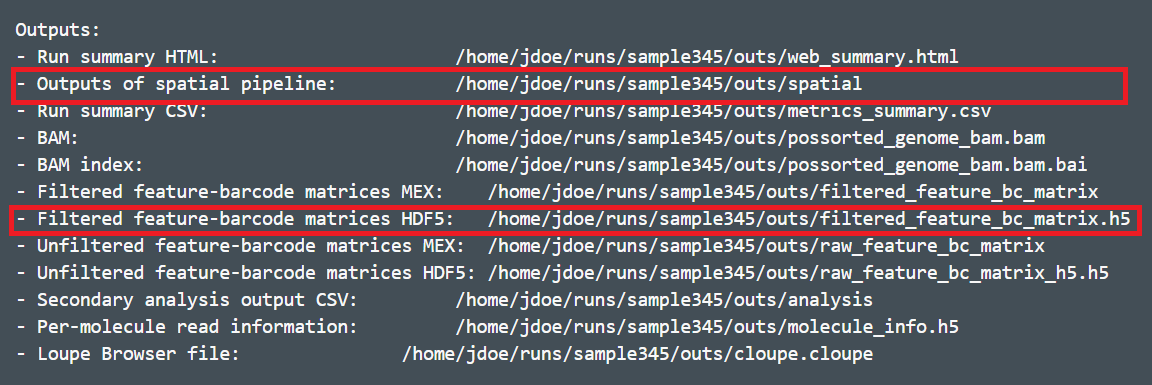
* spatial – Outputs of spatial pipeline (Figure 1) (Spatial imaging data)

<figure><img src="https://1384254481-files.gitbook.io/~/files/v0/b/gitbook-x-prod.appspot.com/o/spaces%2FJVEESmJAPppJ3ijFq5aR%2Fuploads%2Fgit-blob-288ae86c95915af77b2a7692dac416370ed0e303%2F1.png?alt=media" alt=""><figcaption><p>Figure 1. The content in outputs directory from Space Ranger. The folder and file highlighted in red are the required files</p></figcaption></figure>

We recommend import count matrix file using .h5 file format, which allow you to import multiple samples at the same time. You need to rename the file names and put all the files in the sample folder to import in one go.

The *spatial* subdirectory contains image related files, they are:

tissue\_hires\_image.png

tissue\_lowres\_image.png

aligned\_fiducials.jpg

detected\_tissue\_image.jpg

tissue\_positions\_list.csv

scalefactors\_json.json

The folder should be compressed in one .gz or zip file when you upload to Flow server. You can pick the file for each sample from the Partek Flow server, your local computer, or a URL using the file browser .

## Annotate Visium image

To run Annotate cells:

* Click a Single cell counts data node
* Click the **Annotation/Metadata** section in the toolbox
* Click **Annotate Visium image**

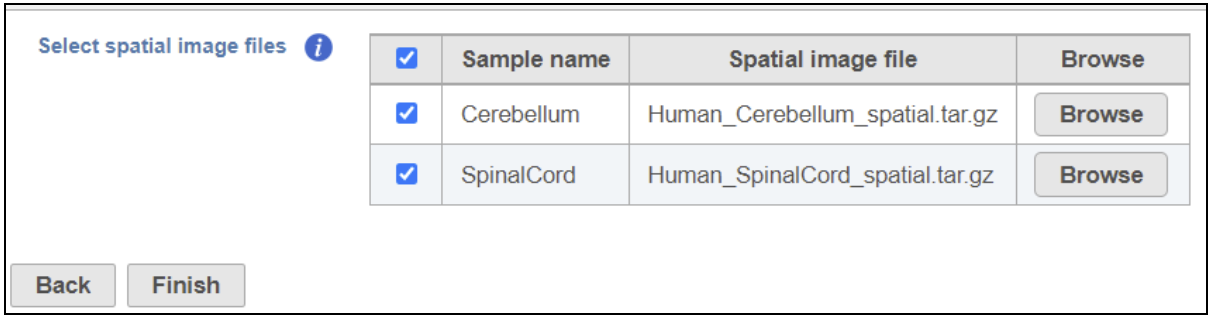
You will be prompted to pick a Spatial image file for each sample you want to annotate (Figure 2).

<figure><img src="https://1384254481-files.gitbook.io/~/files/v0/b/gitbook-x-prod.appspot.com/o/spaces%2FJVEESmJAPppJ3ijFq5aR%2Fuploads%2Fgit-blob-d32c32e95cba453a4951c5d5d718203db92da88f%2Fannotateviz_fig2.png?alt=media" alt=""><figcaption><p>Figure 2. Select the zipped image folder for each sample. The image zip file should contains 6 files including image files and tissue position text file with a scale factor json file</p></figcaption></figure>

* Click **Finish**

A new data node, Annotated counts, will be generated (Figure 3).

<figure><img src="https://1384254481-files.gitbook.io/~/files/v0/b/gitbook-x-prod.appspot.com/o/spaces%2FJVEESmJAPppJ3ijFq5aR%2Fuploads%2Fgit-blob-63b67e13a00480fddb773bf4d60efda73f028d4a%2Fannotateviz_fig3.png?alt=media" alt="" width="557"><figcaption><p>Figure 3. The Annotated counts output node is Split by sample. This means that any tasks performed from this node will also be split by sample. Invoke tasks from the Single cell counts node to combine samples for analyses.</p></figcaption></figure>

When the task report of the annotated counts node is opened (or double click on the Annotated counts node), the images will be displayed in data viewer (Figure 4)

<figure><img src="https://1384254481-files.gitbook.io/~/files/v0/b/gitbook-x-prod.appspot.com/o/spaces%2FJVEESmJAPppJ3ijFq5aR%2Fuploads%2Fgit-blob-ea6a1aef70311a67ae46dd948d5d7c60d1c4d425%2Fannotateviz_fig4.png?alt=media" alt=""><figcaption><p>Figure 4. Tissue image displayed in data viewer</p></figcaption></figure>

It is a 2D plot and XY axes are the tissue spot coordinates. Tissue spots are on top of the slide image. The opacity of the tissue spots can be changed using the slider to show more of the image under **Configure>Style>Color**.

To view different samples in the Data viewer, navigate to **Axes** under *Configure* Click on the ![image2021-6-22\_17-59-22](https://github.com/illumina-swi/partek-docs/assets/167460925/92beb92c-57bf-4955-9de1-6c9405c55cb8) button under **Content** in the left panel (Figure 5).

<figure><img src="https://1384254481-files.gitbook.io/~/files/v0/b/gitbook-x-prod.appspot.com/o/spaces%2FJVEESmJAPppJ3ijFq5aR%2Fuploads%2Fgit-blob-a4967b9a0db5913201426624ce916631b648f2c5%2Fannotateviz_fig5.png?alt=media" alt=""><figcaption><p>Figure 5. View different samples in the data viewer</p></figcaption></figure>

From the **Configure>Background>Image** drop-down list in the Data viewer, different formats of the image can be selected (Figure 6).

<figure><img src="https://1384254481-files.gitbook.io/~/files/v0/b/gitbook-x-prod.appspot.com/o/spaces%2FJVEESmJAPppJ3ijFq5aR%2Fuploads%2Fgit-blob-46989d1da60b6ddee541feacd3d182a2b45ea66c%2Fannotateviz_fig6.png?alt=media" alt="" width="306"><figcaption><p>Figure 6. Select different format of slide image as background</p></figcaption></figure>

Click on **Show image** ![image2021-6-22\_18-6-37](https://1384254481-files.gitbook.io/~/files/v0/b/gitbook-x-prod.appspot.com/o/spaces%2FJVEESmJAPppJ3ijFq5aR%2Fuploads%2Fgit-blob-31ca74f1358a1f7206667d2d6aea1fe7af2a751e%2Fimage2021-6-22_18-6-37.png?alt=media) to turn on or off the background image.

Note that the "Annotate Visium image" task splits by sample so all of the downstream tasks will also do this (e.g. if the pipeline is built from this node all of the downstream tasks will also be split and viewed per sample). To generate plots with multiple samples on one plot, build the pipeline from the "Single cell counts" node.

## References

\[1] <https://support.10xgenomics.com/spatial-gene-expression/software/pipelines/latest/output/overview>

## Additional Assistance

If you need additional assistance, please visit [our support page](http://www.partek.com/support) to submit a help ticket or find phone numbers for regional support.