> For the complete documentation index, see [llms.txt](https://help.partek.illumina.com/llms.txt). Markdown versions of documentation pages are available by appending `.md` to page URLs; this page is available as [Markdown](https://help.partek.illumina.com/partek-flow/user-manual/task-menu/data-summary-report.md).
# Data summary report
The *Data summary report* in Partek Flow provides an overview of all tasks performed as part of a pipeline. This is particularly useful for report writing, record keeping and revisiting projects after a long period of time.
This user guide will cover the following topics:
* [Viewing the Data Summary Report](#viewing-the-data-summary-report)
* [Saving the Data Summary Report](#saving-the-data-summary-report)
* [Quick Video Demo of the Data Summary Report](#quick-video-demo-of-the-data-summary-report)
## Viewing the Data Summary Report
Click on an output data node under the *Analyses* tab of a project and choose **Data summary report** from the context sensitive menu on the right (Figure 1). The report will include details from all of the tasks upstream of the selected the node. If tasks have been performed downstream of the selected data node, they will not be included in the report.

Each task will appear as a separate section on the *Data summary report* (Figure 2). The first section of the report (*Sample data*) will summarize the input samples information. Click the **grey arrows** (  /  ) to expand and collapse each section. When expanded, the task name, user that performed the task, start date and time, duration and the output file size are displayed (Figure 2). To view or hide a table of task settings, click **Show/hide details** (Figure 3).


## Saving the Data Summary Report
The *Data summary report* can be saved in different formats via the web browser. The instructions below are for Google Chrome. If you are using a different browser, consult your browser's help for equivalent instructions.
### Save as a PDF
On the *Data summary report*, expand all sections and show all task details. Right-click anywhere on the page and choose **Print...** from the menu (Figure 4) or use **Ctrl+P** (**Command+P** on Mac). In the print dialog, click **Change…** (Figure 5) and set the destination to **Save as PDF**. Select the **Background graphics** checkbox (optional), click the blue **Save** button (Figure 5) and choose a file location on your local machine.
The PDF can be attached to an email and/or opened in a PDF viewer of your choice.


### Save as HTML
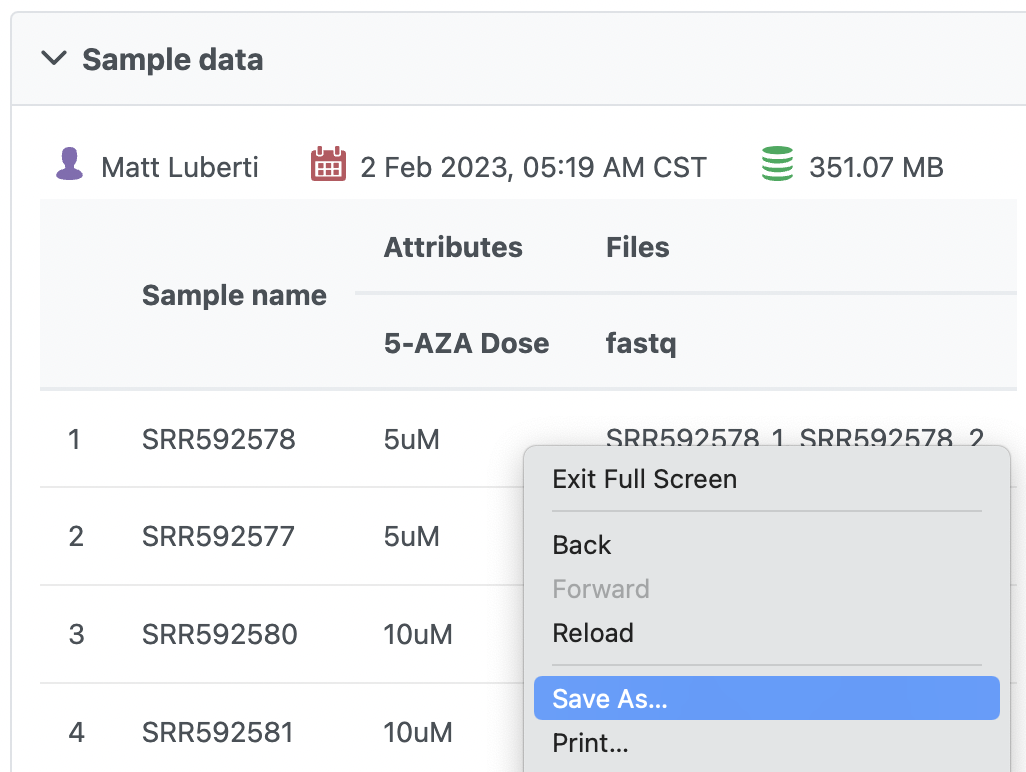
On the *Data summary report*, right-click anywhere on the page and choose **Save as…** from the menu (Figure 6) or use **Ctrl+S** (**Command+S** on Mac). Choose a file location on your local machine and set the file type to **Web Page, Complete**.
The HTML file can be opened in a browser of your choice.
Figure 6. To save the Data summary report as HTML in Google Chrome, choose Save as...
## Quick Video Demo of the Data Summary Report
The short video clip below (with audio) shows a tutorial of looking at the Data Summary Report
{% embed url="" %}
## Additional Assistance
If you need additional assistance, please visit [our support page](http://www.partek.com/support) to submit a help ticket or find phone numbers for regional support.
---
# Agent Instructions
This documentation is published with GitBook. GitBook is the documentation platform designed so that both humans and AI agents can read, navigate, and reason over technical content effectively. Learn more at gitbook.com.
## Querying This Documentation
If you need additional information that is not directly available in this page, you can query the documentation dynamically by asking a question.
Perform an HTTP GET request on the current page URL with the `ask` query parameter, and the optional `goal` query parameter:
```
GET https://help.partek.illumina.com/partek-flow/user-manual/task-menu/data-summary-report.md?ask=&goal=
```
`ask` is the immediate question: it should be specific, self-contained, and written in natural language.
`goal` is optional and describes the broader end goal you are ultimately trying to accomplish on behalf of the user. GitBook uses it to tailor the answer towards what is most useful for that goal.
The response will contain a direct answer to the question and relevant excerpts and sources from the documentation.
Use this mechanism when the answer is not explicitly present in the current page, you need clarification or additional context, or you want to retrieve related documentation sections.