> For the complete documentation index, see [llms.txt](https://help.partek.illumina.com/llms.txt). Markdown versions of documentation pages are available by appending `.md` to page URLs; this page is available as [Markdown](https://help.partek.illumina.com/partek-flow/user-manual/task-menu/normalization-and-scaling/normalize-to-baseline.md).
# Normalize to baseline
If your experimental design includes a sample or a group of samples serving as a baseline control, you can normalize the experimental samples by subtracting or dividing by the baseline sample(s) using the Normalize to baseline task in Partek Flow. For example, in PCR experiments, the delta Ct values of control samples are subtracted from the delta Ct values of experimental samples to obtain delta-delta Ct values for the experimental samples.
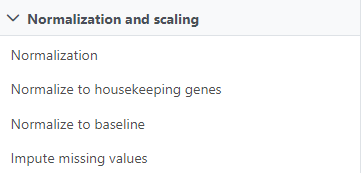
The Normalize to baseline option is available in the *Normalization and Scaling* section of the context-sensitive menu (Figure 1) upon selection of any count matrix data node.
There are three options to choose the baseline samples:
* use all samples
* use a group
* use matched pairs
## Use all samples to create baseline
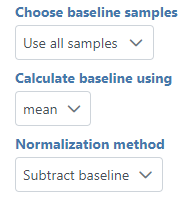
To normalize data to all the samples, choose to calculate the baseline using the **mean** or **median** of all samples for each feature, and choose to **subtract** **baseline** or **ratio to baseline** for the normalization method (Figure 2), and click **Finish**.
Use a group to create baseline
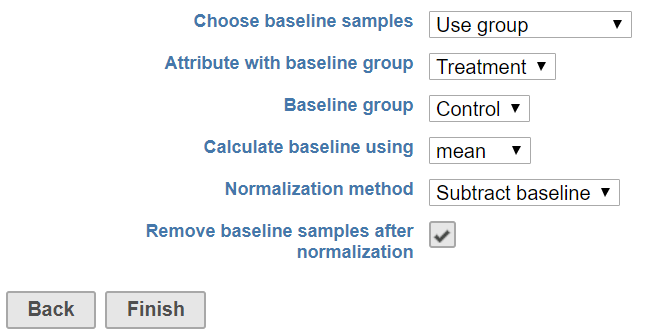
When there is a subset of samples that serve as the baseline in the experiment, select **use group** for Choose baseline samples. The specific group should be specified using sample attributes (Figure 3).
Choose **use group**, select the attribute containing the baseline group information, e.g. **Treatment** in this example, with the samples with the group **Control** for the **Treatment** attribute used as the baseline. The control samples can be filtered out after normalization by selecting the **Remove baseline samples after normalization** check box.
## Use matched pairs
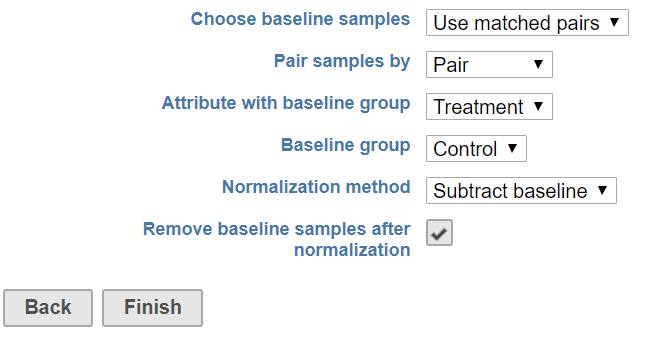
When using matched pairs, one sample from each pair serves as the control. An attribute specifying the pairs must be selected in addition to an attribute designating which sample in each pair is the baseline sample (Figure 4).
After normalization, all values for the control sample will be either 0 or 1 depending on the normalization method chosen, so we recommend removing baseline samples when using matched pairs.
The output of Normalize to baseline is a Normalized counts data node.
## Additional Assistance
If you need additional assistance, please visit [our support page](http://www.partek.com/support) to submit a help ticket or find phone numbers for regional support.
---
# Agent Instructions
This documentation is published with GitBook. GitBook is the documentation platform designed so that both humans and AI agents can read, navigate, and reason over technical content effectively. Learn more at gitbook.com.
## Querying This Documentation
If you need additional information that is not directly available in this page, you can query the documentation dynamically by asking a question.
Perform an HTTP GET request on the current page URL with the `ask` query parameter, and the optional `goal` query parameter:
```
GET https://help.partek.illumina.com/partek-flow/user-manual/task-menu/normalization-and-scaling/normalize-to-baseline.md?ask=&goal=
```
`ask` is the immediate question: it should be specific, self-contained, and written in natural language.
`goal` is optional and describes the broader end goal you are ultimately trying to accomplish on behalf of the user. GitBook uses it to tailor the answer towards what is most useful for that goal.
The response will contain a direct answer to the question and relevant excerpts and sources from the documentation.
Use this mechanism when the answer is not explicitly present in the current page, you need clarification or additional context, or you want to retrieve related documentation sections.