> For the complete documentation index, see [llms.txt](https://help.partek.illumina.com/llms.txt). Markdown versions of documentation pages are available by appending `.md` to page URLs; this page is available as [Markdown](https://help.partek.illumina.com/partek-flow/tutorials/bulk-rna-seq/exploring-the-data-set-with-pca.md).
# Exploring the data set with PCA
The principal components analysis (PCA) scatter plot allows us to visualize similarities and differences between the samples in a data set.
* Click the **Normalized counts** data node
* Click **Exploratory analysis** in the task menu
* Click **PCA**
* Click **Finish** to run PCA with the default options
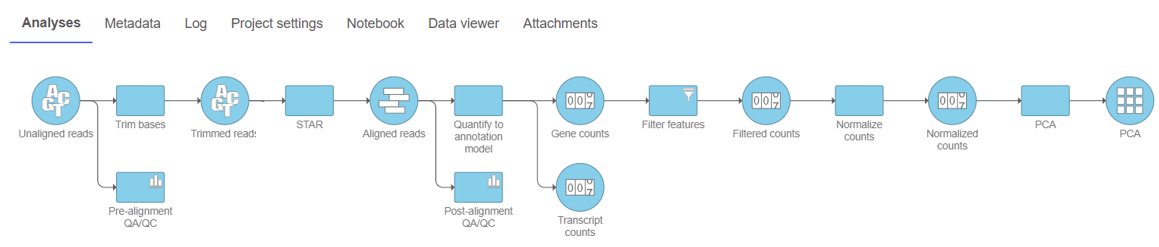
A PCA task node and a PCA data node will be added to the pipeline (Figure 1)
Figure 1. PCA task node and data node are added to the pipeline
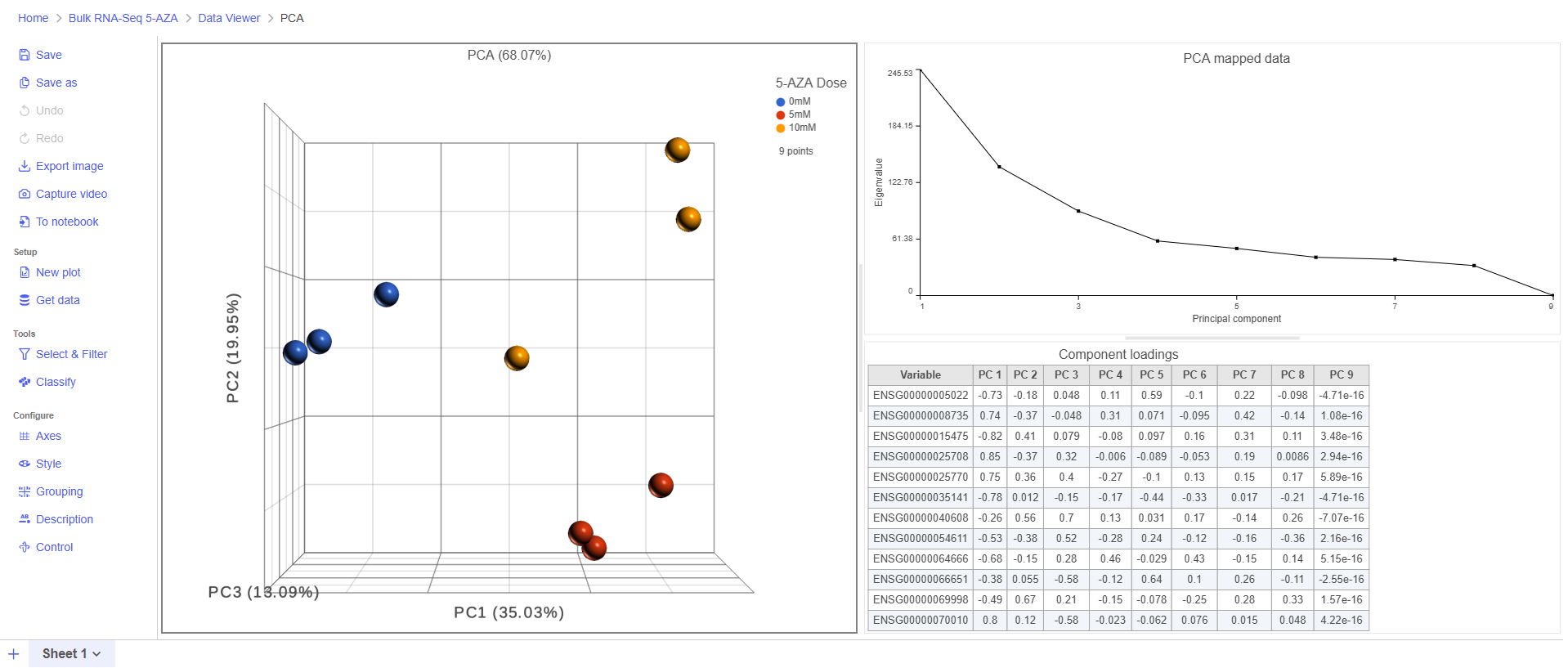
* Double click the **PCA** data node to open the PCA scatter plot and corresponding information in the Data Viewer (Figure 2)
Figure 2. Viewing the PCA plot in Data Viewer
In the Data Viewer, select the 3D PCA scatter plot then click **Style** under Configure and set the Color by drop-down to **5-AZA Dose**. The scatter plot shows each sample as a sphere, colored by treatment group, in a three dimensional plot. The x, y, and z axes are the first three principal components. The percentage of total variance explained by each is listed next to the axis label. The size of each axis is determined by the variance along that axis. The plot is fully interactive; it can be rotated and points selected.
Here, we can see that samples separate based on treatment, but there is noticeable separation within treatment groups, particularly the 0μM and 10μM treatment groups.
For more detailed information about the PCA scatter plot, please see the [PCA](/partek-flow/user-manual/task-menu/exploratory-analysis/pca.md) user guide.
## Additional Assistance
If you need additional assistance, please visit [our support page](http://www.partek.com/support) to submit a help ticket or find phone numbers for regional support.
---
# Agent Instructions
This documentation is published with GitBook. GitBook is the documentation platform designed so that both humans and AI agents can read, navigate, and reason over technical content effectively. Learn more at gitbook.com.
## Querying This Documentation
If you need additional information that is not directly available in this page, you can query the documentation dynamically by asking a question.
Perform an HTTP GET request on the current page URL with the `ask` query parameter, and the optional `goal` query parameter:
```
GET https://help.partek.illumina.com/partek-flow/tutorials/bulk-rna-seq/exploring-the-data-set-with-pca.md?ask=&goal=
```
`ask` is the immediate question: it should be specific, self-contained, and written in natural language.
`goal` is optional and describes the broader end goal you are ultimately trying to accomplish on behalf of the user. GitBook uses it to tailor the answer towards what is most useful for that goal.
The response will contain a direct answer to the question and relevant excerpts and sources from the documentation.
Use this mechanism when the answer is not explicitly present in the current page, you need clarification or additional context, or you want to retrieve related documentation sections.