# Viewing DESeq2 results and creating a gene list

Once we have performed DESeq2 to identify differentially expressed genes, we can create a list of significantly differentially expressed genes using cutoff thresholds.

* Double click the **DESeq2** data node to open the task report

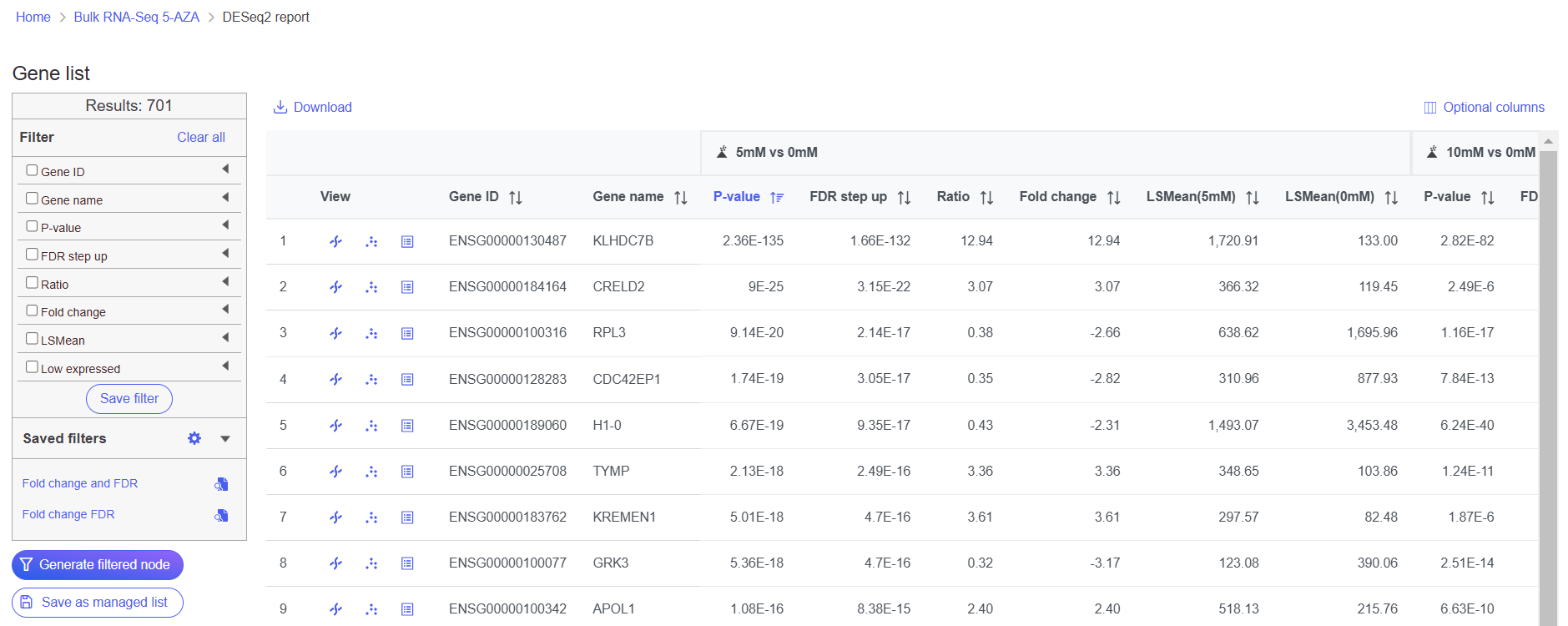
The task report shows genes on rows and the results of the DESeq2 on columns (Figure 1).

<figure><img src="/files/wrO3SjPU1r8nBgUw3yFK" alt=""><figcaption><p><em>Figure 1. Viewing the DESeq2 task report</em></p></figcaption></figure>

To get a sense of what filtering thresholds to set, we can view a volcano plot for a comparison.

* Click ![Volcano icon](/files/keaDTokBfjJKEUxgY2qO) next to the 5uM vs. 0uM comparison

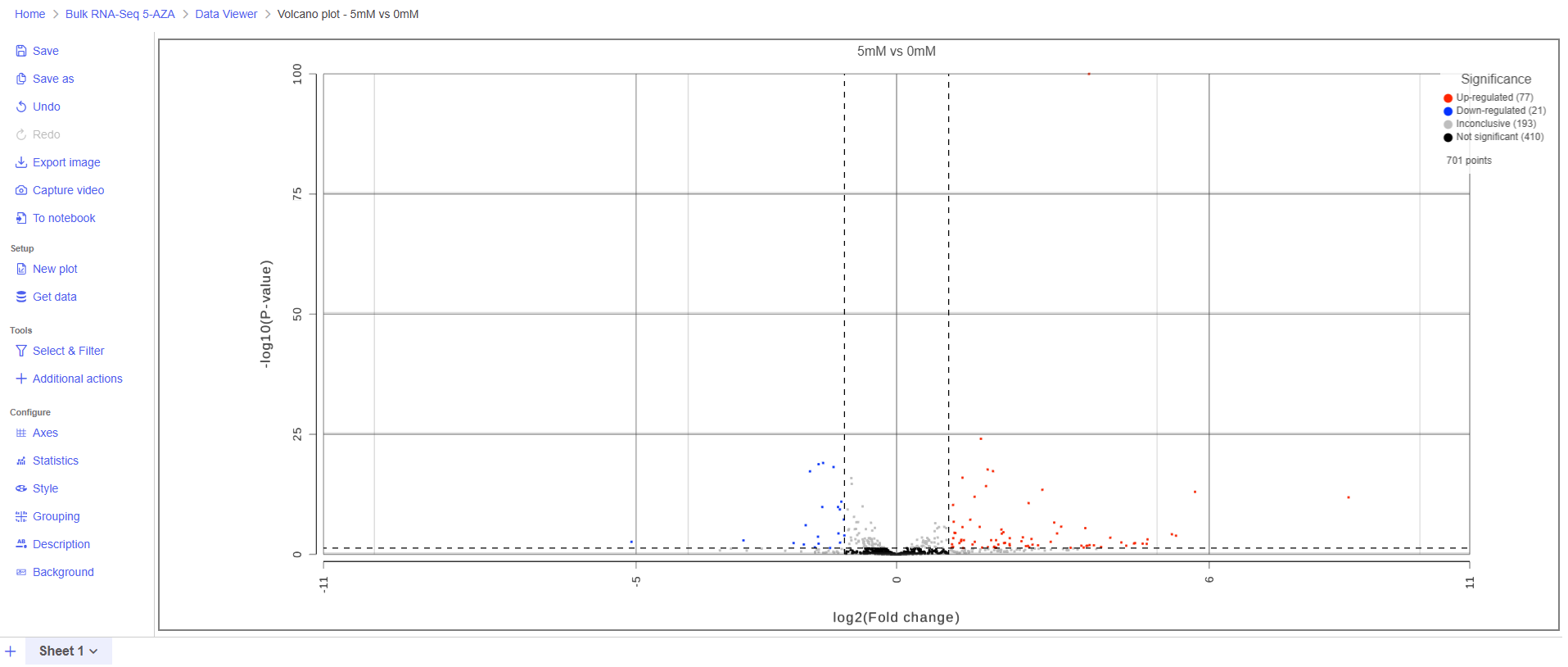
A volcano plot will open showing p-value on the y-axis and fold-change on the x-axis (Figure 2). If the gene labels are on (not shown), click on the plot to turn them off.

<figure><img src="/files/KkRAm698EO8JTK7PVOq1" alt=""><figcaption><p><em>Figure 2. Viewing DESeq2 results with a volcano plot</em></p></figcaption></figure>

Thresholds for the cutoff lines are set using the Statistics card (Left panel > Configure > Statistics). The default thresholds are |2| for the X axis and 0.05 for the Y axis.

* Switch to the browser tab showing the DESeq2 report
* Click **FDR step up**
* Click the triangle next to FDR step up to open the FDR step up options
* Leave **All contrasts** selected
* Set the cutoff value to **0.05**. Hit **Enter**.

This will include genes that have a FDR step up value of less than or equal to 0.05 for all three contrasts, 5μM vs. 0μM, 10μM vs. 0μM and 5μM:10μM vs. 0μM. FDR step up is the false discovery rate adjusted p-value used by convention in microarray and next generation sequencing data sets in place of unadjusted p-value.

* Click **Fold-change**
* Click the triangle next to Fold-change to open the Fold-change options
* Leave **All contrasts** selected
* Set to From **-2** to **2** with **Exclude range** selected. Hit **Enter**.

Note that the number of genes that pass the filter is listed at the top of the filter menu next to Results: and will update to reflect any changes to the filter. Here, 28 genes pass the filter (Figure 3). Depending on your settings, the number may be slightly different.

<figure><img src="/files/7taEfBgtZcRDxlwZvQ0X" alt=""><figcaption><p><em>Figure 3. Applying filters to the DESeq2 results</em></p></figcaption></figure>

* Click <img src="/files/evhbH8KfAIikNXm9qrLV" alt="Generate filtered node button" data-size="line"> to create a data node with only the genes that pass the filter

This creates a Filter list task node and a Filtered feature list data node (Figure 4).

<figure><img src="/files/PMoBYpVZ2obcRqefUnAI" alt=""><figcaption><p><em>Figure 4. Filter list and a new Feature list node are added to the pipeline</em></p></figcaption></figure>

## Additional Assistance

If you need additional assistance, please visit [our support page](http://www.partek.com/support) to submit a help ticket or find phone numbers for regional support.


---

# Agent Instructions: Querying This Documentation

If you need additional information that is not directly available in this page, you can query the documentation dynamically by asking a question.

Perform an HTTP GET request on the current page URL with the `ask` query parameter:

```
GET https://help.partek.illumina.com/partek-flow/tutorials/bulk-rna-seq/viewing-deseq2-results-and-creating-a-gene-list.md?ask=<question>
```

The question should be specific, self-contained, and written in natural language.
The response will contain a direct answer to the question and relevant excerpts and sources from the documentation.

Use this mechanism when the answer is not explicitly present in the current page, you need clarification or additional context, or you want to retrieve related documentation sections.